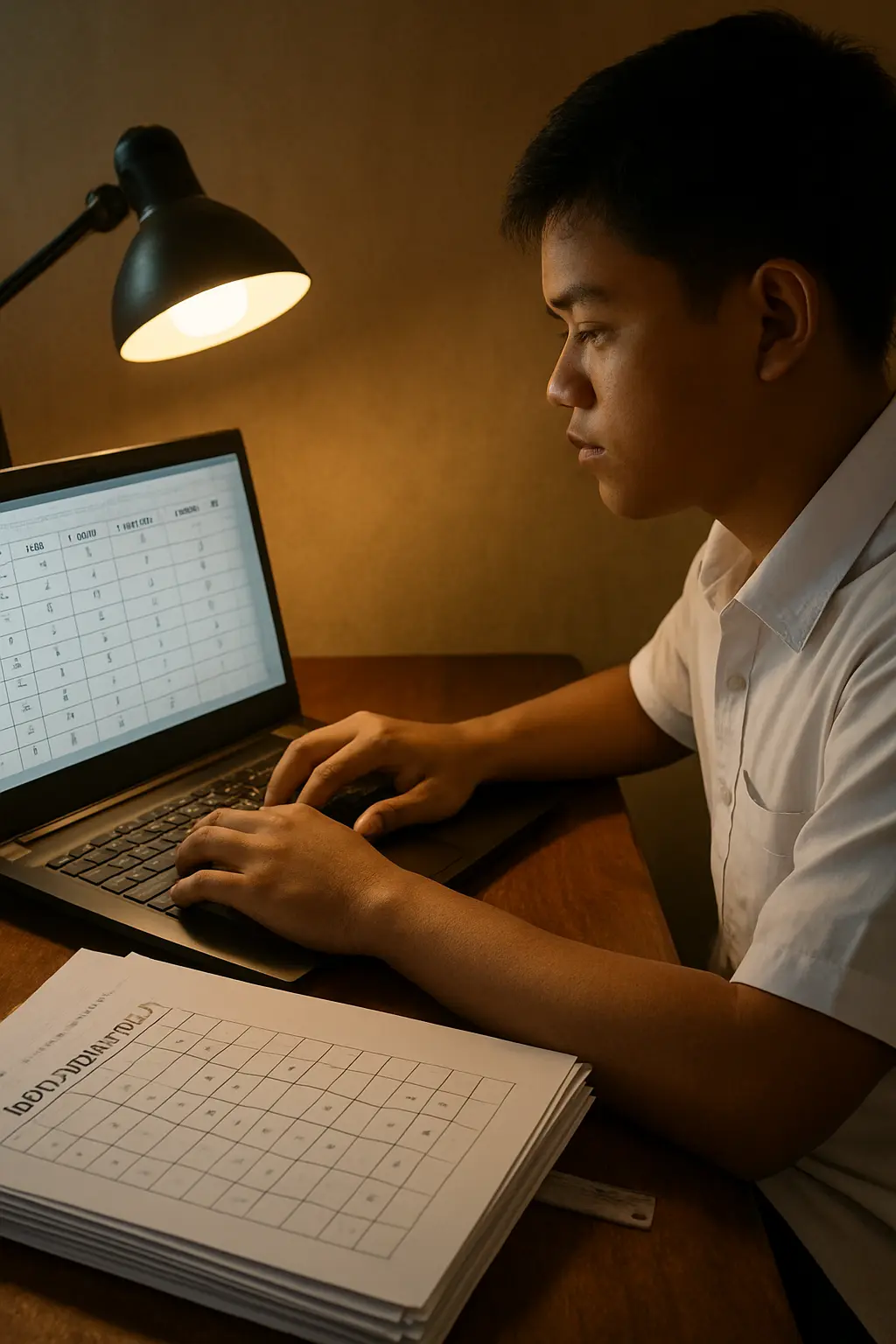
Your data is collected, the questionnaires are in a folder, and SPSS is open on a borrowed laptop with a cursor blinking in an empty grid. This is where most Philippine thesis groups lose a week — not to the statistics, which are usually straightforward, but to not knowing the order of operations.
This guide walks that order in nine steps, with the exact menu path for every procedure an undergraduate quantitative thesis needs. Menu paths are quoted as documented in Kent State University Libraries’ SPSS Tutorials, a freely available reference maintained alongside the software; recent SPSS versions keep them stable, but if a menu on your machine reads slightly differently, trust your machine.
Two things to settle before you start. You should already know which statistical tool answers which of your specific problems — that decision belongs to the statistical treatment section of Chapter 3, not to the software. And if you do not have SPSS at all, check your campus licence before paying for anything; the free alternatives and what Excel can and cannot do are compared in SPSS vs Excel for thesis statistics.
Step 1: Number the questionnaires before you touch a computer
Expected output: a physical stack in which every accomplished instrument carries a unique case number.
- Set aside the incomplete instruments in a separate pile. Count both piles and write both counts down; Chapter 3 needs them.
- Write 1, 2, 3 in the top-right corner of each usable questionnaire.
- Keep the numbered stack in that order for the whole encoding session.
This takes fifteen minutes and it is the only thing that makes an encoding error recoverable. When SPSS later shows a respondent with an age of 220, the case number tells you which sheet of paper to go back to. Without it you are re-checking 326 questionnaires to find one typo.
Step 2: Build the variable list before you enter a single response
Expected output: a complete Variable View, with one row per questionnaire item, filled in before any data exists.
Click the Variable View tab at the bottom of the data editor. Every questionnaire item becomes one row. Four columns matter.
- Name — short, no spaces, and systematic. Use
sex,major,B1toB15,C1toC12so the names mirror the parts of your instrument. - Label — the full item text. This is what appears on your output tables, so a good label here saves you retyping every row of Chapter 4 by hand.
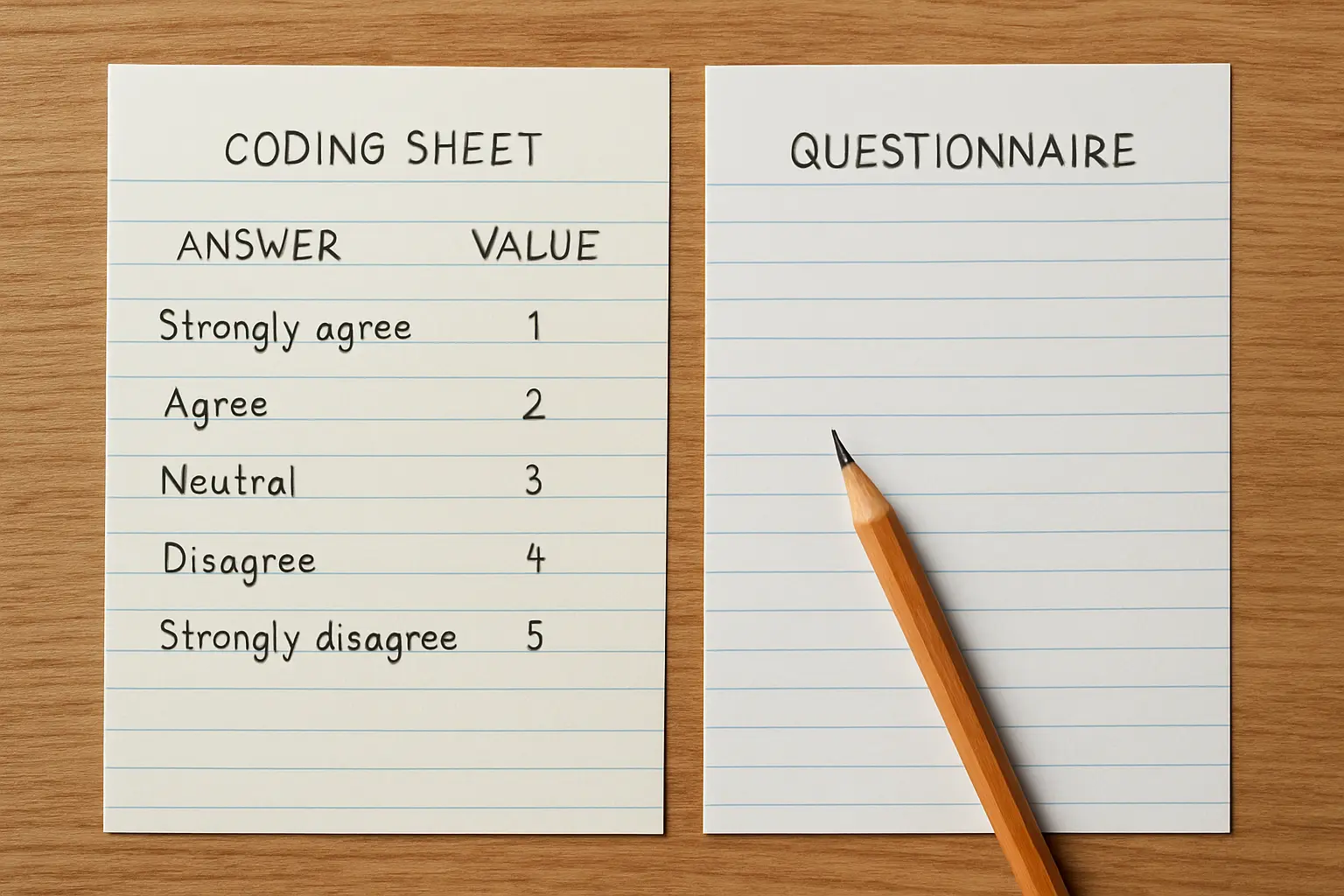
- Values — the numeric code for each answer option: 1 = Strongly Disagree through 4 = Strongly Agree, or 1 = Male, 2 = Female.
- Measure — Nominal for categories such as sex or major, Ordinal for Likert items, Scale for genuinely continuous variables such as age or a computed total.
Getting Measure right early prevents an entire class of later confusion, because SPSS uses it to decide which procedures it will offer you for a variable.
Step 3: Encode the responses, one row per respondent
Expected output: a Data View grid with as many rows as you have usable questionnaires.
Switch to Data View and work down the numbered stack. One respondent is one row; one item is one column. Never put two respondents on one row and never spread one respondent across two.
Three rules that prevent the most expensive mistakes. Leave a genuinely unanswered item blank rather than typing 0 — a zero is a real value and it will drag your mean down. Decide as a group how to treat an item where a respondent ticked two boxes, and apply that decision to every case, not case by case. And if you split the encoding across three laptops, agree the codebook in writing first, because merging three files that coded sex differently costs more than the encoding did.
Save as a .sav file after every fifty cases, to a name that includes the date.
Step 4: Reverse-score the negatively worded items
Expected output: new variables in which every item points the same direction.
If your instrument contains an item like “I find it difficult to apply what I learned”, a high score on that item means the opposite of a high score on the rest of the scale. Averaging it in unreversed will depress your mean and wreck your reliability coefficient, and it is the single commonest reason a Philippine undergraduate scale comes back with an unexpectedly low alpha.
- Go to Transform > Recode into Different Variables.
- Move the negatively worded item across and give the output variable a new name, such as
B7r. - Click Old and New Values and enter the reversal for a four-point scale: 1→4, 2→3, 3→2, 4→1.
- Click Add for each pair, then Continue and OK.
Always recode into a different variable, never over the original. Keeping the raw column means a mistake here is one recode away from being fixed rather than one re-encoding away.
Step 5: Screen the data before you analyse it
Expected output: a frequency table for every variable, checked against the range each one is allowed to take.
Run Analyze > Descriptive Statistics > Frequencies, move all your variables across, and read the output for three things.
- Impossible values. A four-point item with a maximum of 5 is a typo. Find the case number and check the paper.
- Missing counts. Every variable’s Valid N should equal your analysed N unless you know why it does not.
- Category totals. The frequencies for sex should sum to your N. If they do not, a case is miscoded.
Fix everything you find here before running anything else. An error corrected now costs a minute; the same error found after you have written three tables costs the afternoon.
Step 6: Run the reliability analysis
Expected output: a Cronbach’s alpha for each scale in your instrument, and an item-total table.
- Go to Analyze > Scale > Reliability Analysis.
- Move in the items of one scale — Part II on its own, then Part III on its own. Do not put the whole questionnaire in at once; a scale measuring two different constructs is not one scale.
- Leave the Model set to Alpha.
- Click Statistics and tick Item, Scale, and Scale if item deleted.
- Run it, then read two things: the alpha itself, and the “Cronbach’s Alpha if Item Deleted” column, which tells you whether one bad item is dragging the scale down.
Report the coefficient in Chapter 3 with the number of items and the pilot sample it came from, exactly as your methodology chapter requires. You will be asked at the defence what software produced it.
Step 7: Produce the descriptive tables Chapter 4 needs
Expected output: the profile table and the per-indicator mean table, in that order.
For the respondent profile — sex, year level, major — use Analyze > Descriptive Statistics > Frequencies and take the frequency and percentage columns straight into your table.
For the “level of” problems, use Analyze > Descriptive Statistics > Descriptives with your Likert items selected; the Mean and Std. Deviation columns are your weighted mean and its spread. Take the overall figure from a computed total, built with Transform > Compute Variable using the MEAN function across the items of that scale.
Report those means to one decimal place, because they come from an integer scale, and carry the standard deviation next to every one of them. Both conventions, and the interpretation bands, are set out in the guide to writing Chapter 4 table by table.
Step 8: Run the inferential test each problem needs
Expected output: one output block per hypothesis, and no output blocks you cannot attach to a hypothesis.
| What your problem asks | Procedure | Menu path |
|---|---|---|
| Are two continuous variables related? | Bivariate Pearson correlation | Analyze > Correlate > Bivariate |
| Are two ordinal or non-normal variables related? | Spearman’s rho | Analyze > Correlate > Bivariate, tick Spearman |
| Are two categorical variables associated? | Chi-square test of independence | Analyze > Descriptive Statistics > Crosstabs, then Statistics > Chi-square |
| Do two groups differ? | Independent-samples t test | Analyze > Compare Means and Proportions > Independent-Samples T Test |
| Do three or more groups differ? | One-way ANOVA | Analyze > Compare Means > One-Way ANOVA |
| Is the distribution normal? | Shapiro-Wilk and Kolmogorov-Smirnov | Analyze > Descriptive Statistics > Explore, then Plots > Normality plots with tests |
Three details the dialogs will make you deal with. In Bivariate, Pearson is selected by default and the test is two-tailed by default, and SPSS flags significance at the .05 and .01 levels. In the Independent-Samples T Test you cannot run anything until you click Define Groups and specify which two codes are being compared. And in Crosstabs the chi-square statistic is not produced unless you tick it under Statistics — the crosstab alone is only a contingency table.
If the normality test in that last row comes back significant, your data is telling you not to use the parametric option. What to do next is a decision with a standard answer, and it is set out in the guide to what to do when your data is not normally distributed.
Step 9: Save the output and reconcile it before you write anything
Expected output: two saved files and four ticks.
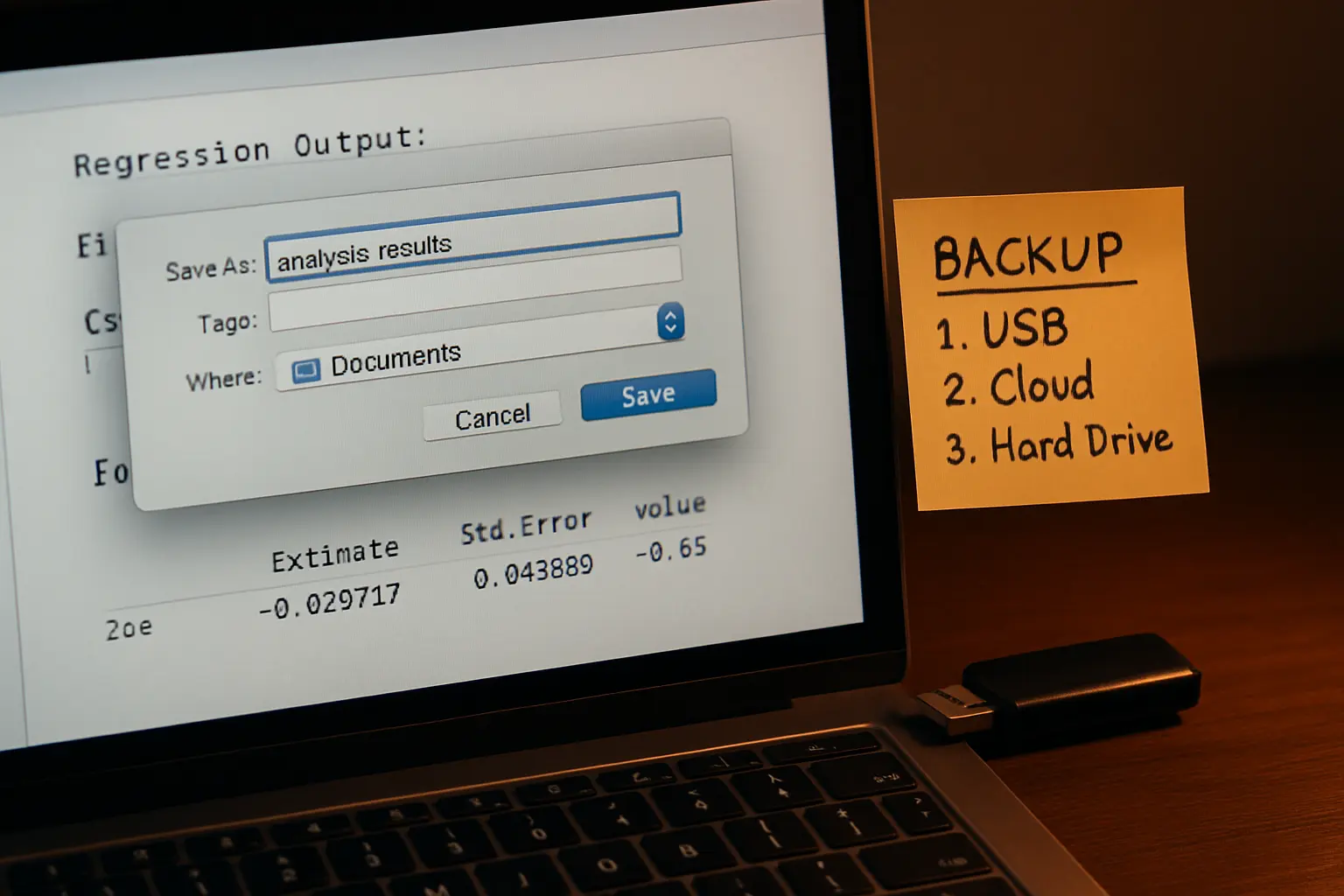
- Save the data as
.savand the output as.spv, both with the date in the filename, and copy both to a second device. - Check that the Valid N on your output matches the analysed N you stated in Chapter 3.
- Check that every research question has exactly one output block, and delete the exploratory runs you did along the way.
- Check that the tools that produced your output are the ones you named in your statistical treatment section. If you changed one, change the chapter too.
Only then start writing. A Chapter 4 built from output you have not reconciled will contradict Chapter 3 somewhere, and that contradiction is what a panel finds first. How the five chapters have to agree with each other is summarised in the overview of Chapters 1 to 5.
You have the output. Now write the chapter.
Tesify holds your chapter structure in the order your research manual expects and keeps every citation attached to a source you actually opened, so the week after analysis goes into interpretation rather than formatting. Over 9,000 students have used it to write more than 15,000 chapters, and every word is still written by you.
Frequently asked questions
How do I start analysing thesis data in SPSS?
Number your questionnaires, build the full Variable View before entering any data, encode one row per respondent, reverse-score negative items, then screen with Frequencies. Only after screening do you run reliability, descriptives and your inferential tests.
What is the menu path for Cronbach’s alpha?
Analyze > Scale > Reliability Analysis, with the Model left on Alpha. Enter one scale at a time and tick “Scale if item deleted” under Statistics so you can see which item is weakening the scale.
How do I encode a Likert scale in SPSS?
Set the item’s Measure to Ordinal and define its Values as 1 through 4 (or 1 through 5) with the verbal label attached to each number. Then type only the numbers into Data View.
Should I enter 0 for an unanswered item?
No. Leave it blank. Zero is a real value on a numeric variable and it will pull the mean down and misstate the count of valid responses.
Do I have to reverse-score negative items?
Yes, if you are going to average items into a scale score or compute a reliability coefficient. Skipping it is the commonest cause of an unexpectedly low Cronbach’s alpha in an otherwise sound instrument.
How do I get a weighted mean in SPSS?
Analyze > Descriptive Statistics > Descriptives gives the mean of each Likert item directly. For an overall scale score, build it first with Transform > Compute Variable using the MEAN function across the items.
Why is the chi-square result missing from my crosstab?
Because it is not produced by default. Open the Statistics button inside the Crosstabs dialog and tick Chi-square, then run it again.
Which SPSS version do I need?
Any recent version handles everything an undergraduate thesis needs. Menu wording shifts slightly between releases, so state in Chapter 3 the version you actually used rather than copying a version number from another thesis.
Can I do all of this in a free package instead?
Yes. JASP and jamovi are free and cover the same undergraduate procedures, and the trade-offs against SPSS and Excel are compared in the guide to statistical software for a thesis. Whichever you use, name that one in your methodology chapter.
Do I need to keep the output file after the defence?
Keep it until your manuscript is finally approved and bound. Panels ask to see output, revisions can require reruns, and rebuilding a lost analysis from paper questionnaires under deadline is a miserable way to spend a weekend.
My groupmates encoded on separate laptops and the files will not merge. What now?
Compare the Variable View of each file side by side before merging anything. Mismatched variable names, different value codes for the same answer and different Measure settings are the usual culprits, and all three are fixable in the file that deviates rather than by re-encoding.